Release documentation guide
Browser Extension or URL Capture? Choosing the Right Screenshot Path
Choose between active-browser and URL or sitemap capture with a practical workflow for access limits, safe evidence handling, and saved screenshot review.
Choose based on where the page can be reached
Use the Chrome extension when the page is already open in an active browser session and the review depends on that context. This can be the right path for a signed-in screen, localhost, or staging page that the public website capture cannot reach. It may still be limited by the target’s readiness, browser permissions, authentication state, bot checks, or cross-origin policy.
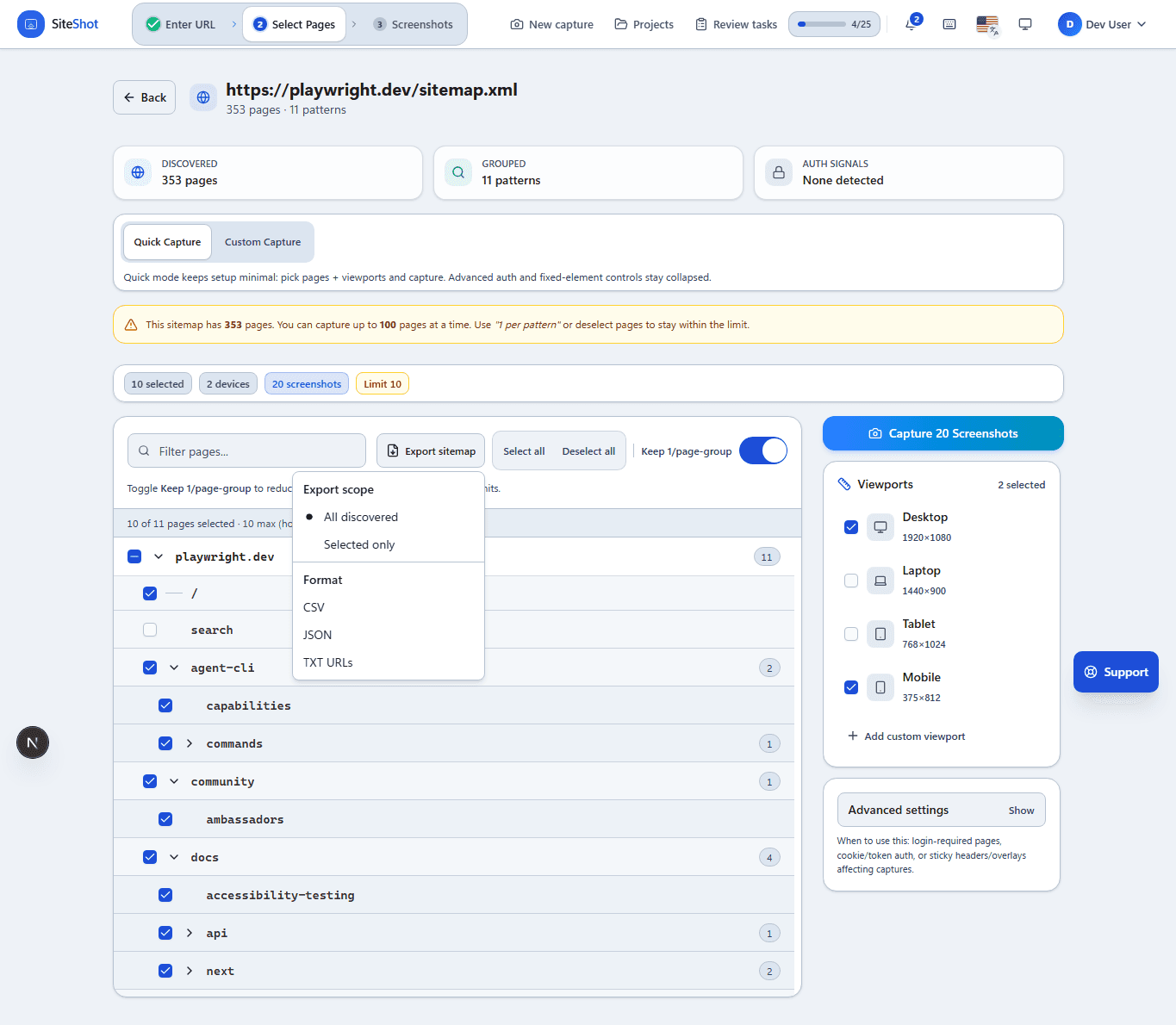
Use URL or sitemap capture when the pages are public and you want to prepare a bounded set without opening each one manually. The website flow discovers URLs from a sitemap or accepts a direct URL, then lets you select pages and viewports. A public URL is not automatically capturable: availability, authentication, robots or bot defenses, and provider readiness can still stop a run.
1. Classify the page and the evidence you need
Start by writing down the page category, not by choosing a button. For a public marketing or documentation route, URL or sitemap capture is usually easier to repeat across a release surface. For a page whose access lives in the browser—such as a signed-in test account, local build, or private staging host—the Chrome extension is the more relevant starting point.
Decide whether the output needs a single page, a small route list, or a broader sitemap inventory. Keep the comparison fair: baseline and candidate should use the same access path, route, viewport set, theme, and deliberate capture options whenever the target allows it.
- Choose active-browser capture for browser-held access; choose URL or sitemap capture for public route discovery.
- Write the exact route or selected URL set and the review question before capturing.
- Use the same capture path and matrix for before-and-after evidence when possible.
2. Handle access and private evidence carefully
For an extension capture, open only the page you intend to review and confirm that its session is the expected one. Grant temporary debugger access only when Chrome requests it for the capture flow. For a URL capture, assume the service can see only what the target makes available to it; do not paste a private URL, access token, cookie, or customer data into a public guide, example, or shared ticket.
If a run fails, record a safe category such as unavailable target, authentication boundary, bot challenge, or incomplete page readiness. Do not work around an access control by exposing credentials or weakening the target’s security policy. Switch capture paths only when the page’s legitimate access model supports that choice.
- Keep session details and tokens out of screenshots, examples, and links shared outside the team.
- Check access and target readiness before retrying a failed run.
- Record failure symptoms without copying private page content into the review record.
3. Inspect and save the evidence that was actually reviewed
Whichever path you choose, inspect the complete saved image before calling it useful evidence. Check that the intended route rendered, the full page is present, the selected viewport is represented, and no loading shell or unexpected access screen was captured. A successful request alone is not proof that the screenshot shows the state you meant to review.
Keep the checked result in a project or saved review record with the route, viewport, access category, and release reference. Use version history, comparison, review tasks, share links, or exports when they fit the handoff. The artifact should document what was visible; it should not imply that authentication, cross-browser coverage, or a provider integration was guaranteed.
- Verify route, state, dimensions, and full-page completeness in the saved output.
- Save the reviewed version with a safe release or task reference.
- Keep visual evidence separate from claims about functional, security, or provider outcomes.
Put the guide into practice
Capture a review-ready record of your next release
Use ViewportKit to capture the pages, viewports, and states that support this workflow, then keep the evidence ready for review.