Release documentation guide
Website Screenshot QA in Chrome: A Repeatable Full-Page Workflow
Use a repeatable Chrome screenshot QA workflow to choose viewports, inspect full-page evidence, and keep a review-ready record of a website change.
What this Chrome QA workflow is for
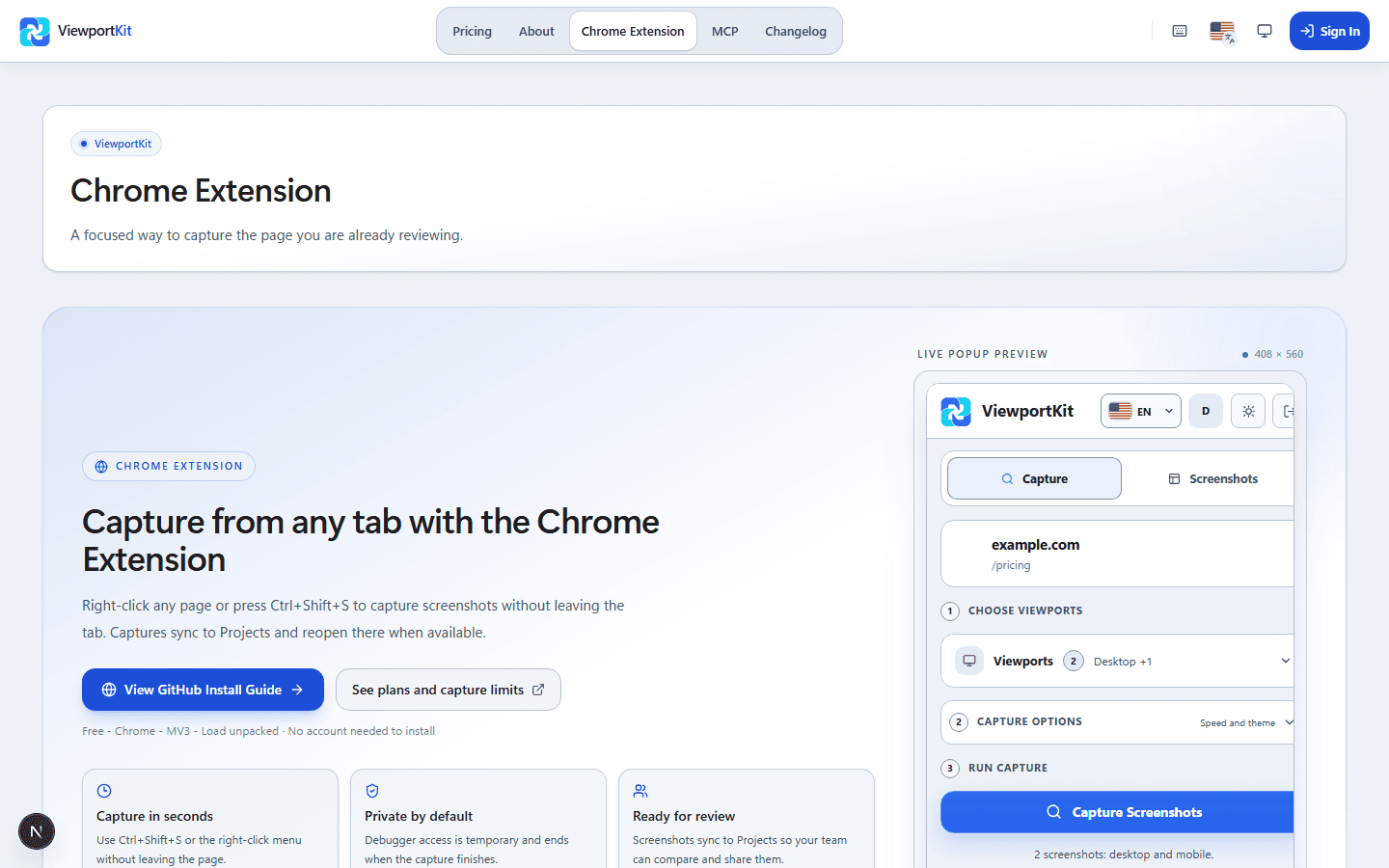
A useful screenshot QA pass starts with the page a reviewer actually intends to inspect, not with a saved image whose source is unclear. The ViewportKit Chrome extension is designed for an HTTP(S) page open in Chrome: choose the viewports and capture options, run the capture, then inspect the result in Projects before sharing or exporting it.
This is visual evidence, not a guarantee that every page can be captured. Authentication, bot checks, cross-origin policy, or a target that has not finished loading can limit a run. Keep the failure visible, investigate the page state, and do not treat a partial or suspicious image as release-ready evidence.
1. Confirm the target page before you capture
Open the exact HTTP(S) route you want to review in Chrome and check that the intended content is present. Confirm the account or preview state, locale, theme, and any test data that should be visible. Do not put a private URL, session token, or customer content into a public example or a ticket that will be shared outside the team.
If Chrome asks for temporary debugger access, grant it only for the capture flow you understand. The extension uses that temporary access to operate on the active page; it is not a reason to skip checking the page yourself. If the target is an internal browser page, an unsupported scheme, or a page still showing a loading shell, stop and resolve that condition first.
- Verify the route, signed-in state, locale, and theme before starting.
- Use an HTTP(S) page and keep private URLs and tokens out of shared evidence.
- Treat a debugger prompt as a temporary, capture-scoped permission.
2. Choose a small, repeatable capture matrix
Select the viewports that answer the QA question instead of collecting arbitrary images. A narrow mobile width, a tablet-sized layout, and a desktop width are a practical starting point for a responsive page. Keep the selected color scheme and other capture options consistent when you are comparing a baseline with a candidate.
Run the same matrix before and after the change. A stable set makes a layout shift, overflow issue, missing section, or sticky-control collision easier to recognize than a one-off browser screenshot. Record the change or release identifier with the project so another reviewer can reproduce the intent.
- Keep the baseline and candidate on the same route and viewport set.
- Include the breakpoint or state most likely to be affected by the change.
- Name the project or run with a release, branch, or review reference.
3. Inspect the complete result before trusting it
When the capture finishes, open Projects and inspect the saved result at its intended dimensions. Check the top, the full scrollable page, lazy-loaded sections, navigation, overlays, and the primary action. If the image is unexpectedly short, blank, cropped, or stuck on a loading state, return to the target page and investigate instead of retrying blindly.
Use the project history and comparison view when the same matrix has a baseline. Leave a focused review task for a visible mismatch, then share a review link or export only after the output has been checked. The saved artifact should make clear what was captured and what the reviewer approved; it does not replace accessibility, interaction, or functional testing.
- Inspect the whole image, including content revealed below the first viewport.
- Compare like-for-like viewports and classify expected versus unintended changes.
- Share or export only after the saved result has passed a human check.
Put the guide into practice
Capture a review-ready record of your next release
Use ViewportKit to capture the pages, viewports, and states that support this workflow, then keep the evidence ready for review.